1What you can do
A playlist is your own collection of recordings, in the order you choose. Subscribers can create up to 1,000 playlists and share them with friends and family.
- Collect single movements, complete performances or whole albums from anywhere on the site.
- Arrange them in any order. The title and description are yours to write, and you can change them at any time.
- Play the whole playlist in your order with one click, or start from any item. Channels always play at random; a playlist plays in exactly the order you set.
- Share it by email. The recipient can play it in full even without a subscription (see Share a playlist).
2Find the playlist button
Next to every ▶ Play button on the site is a round playlist button (a list with a music note).
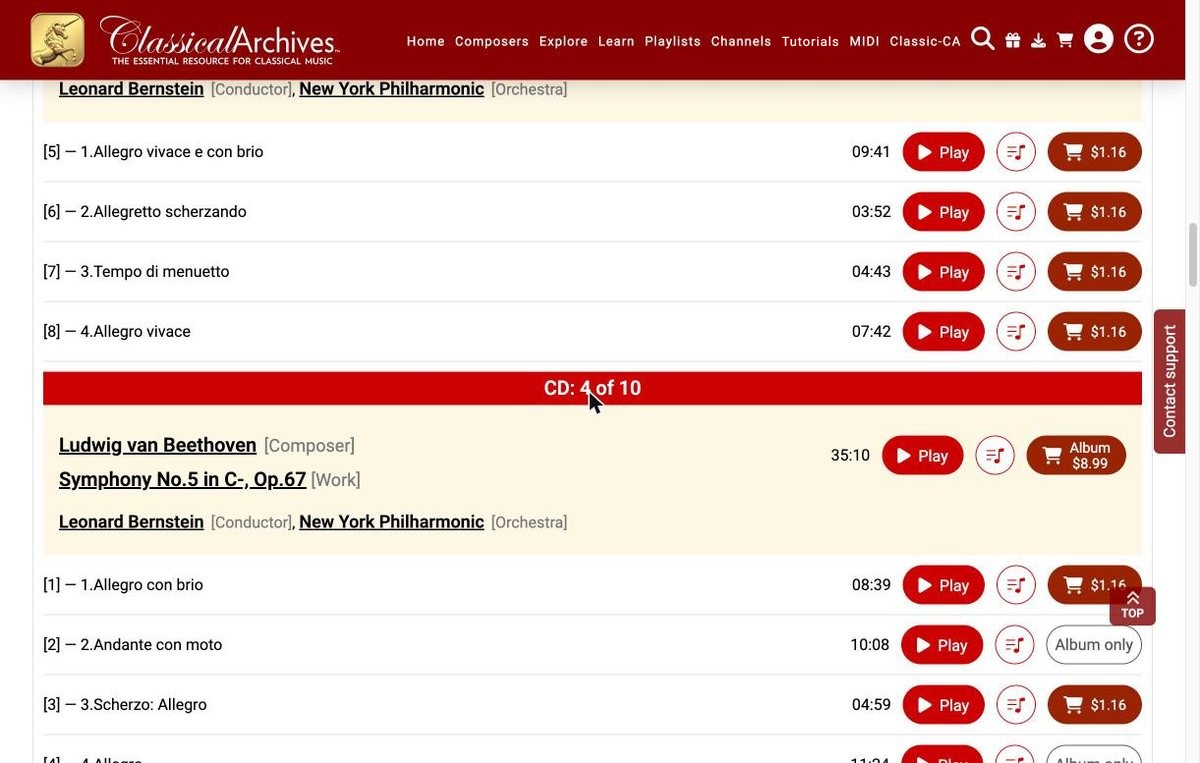
Which one you click decides what goes into the playlist:
| Button next to… | Adds |
|---|---|
| A movement or track | That single track. |
| A performance | The complete work in that recording, all movements in order. |
| The album, at the top of an album page | The whole album. |
You'll find these buttons on album pages, work pages, performer pages and playlist pages.
3Create a new playlist
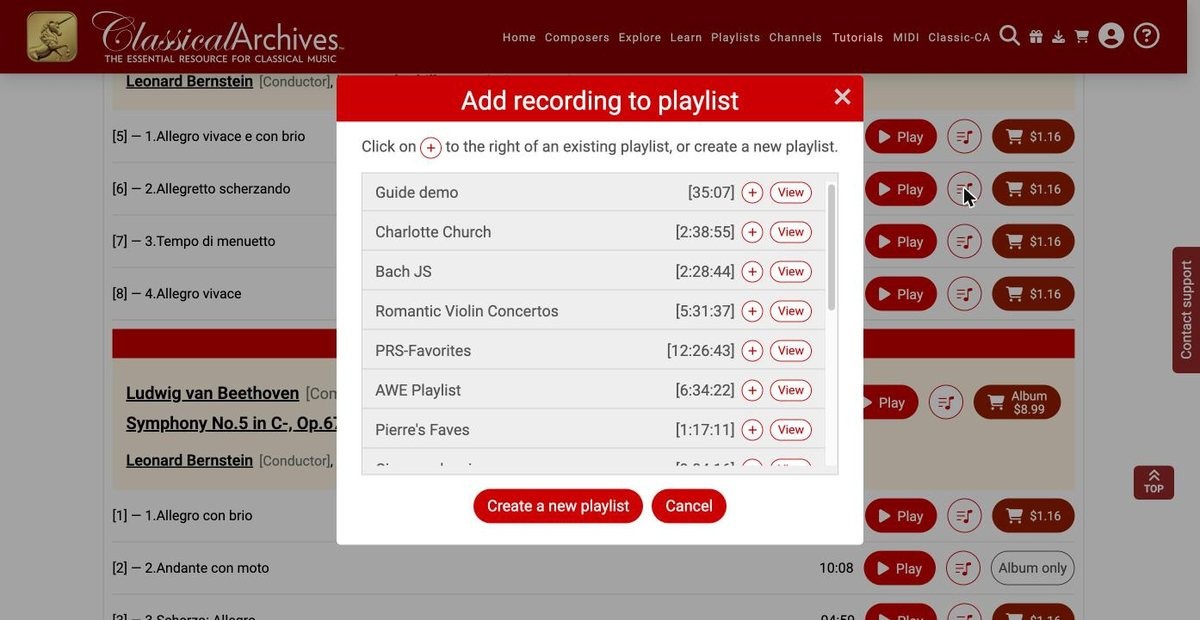
- Click the playlist button next to the music you want. The Add to playlist window opens and lists the playlists you already have.
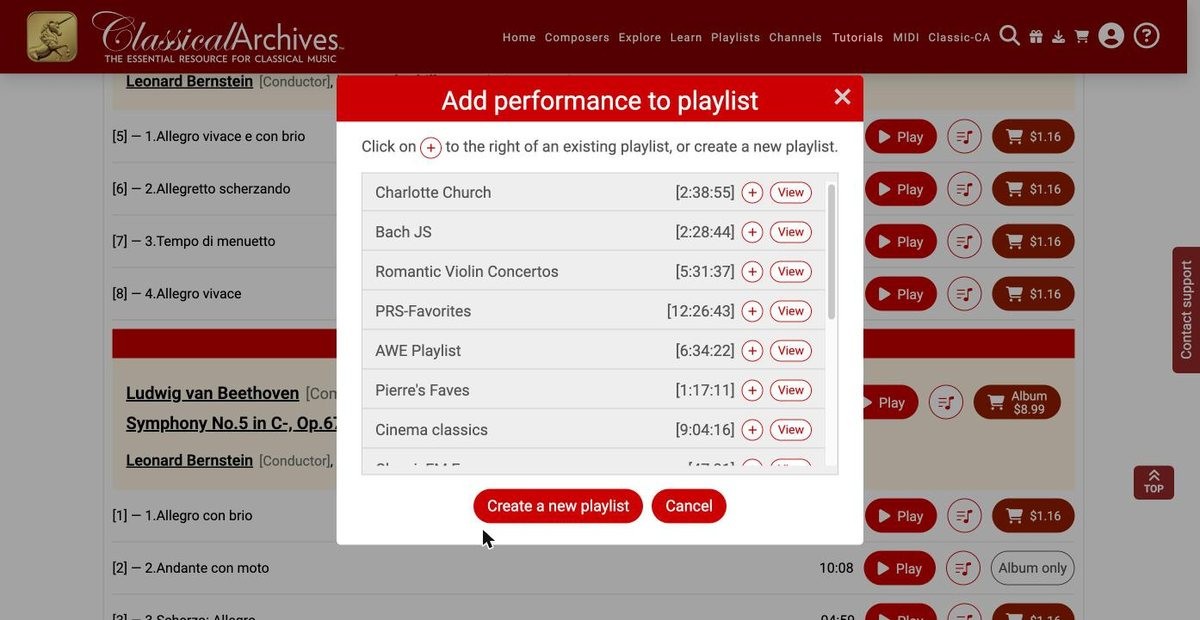
The Add performance to playlist window, listing your existing playlists. - Click Create a new playlist, type a title, and click Save.
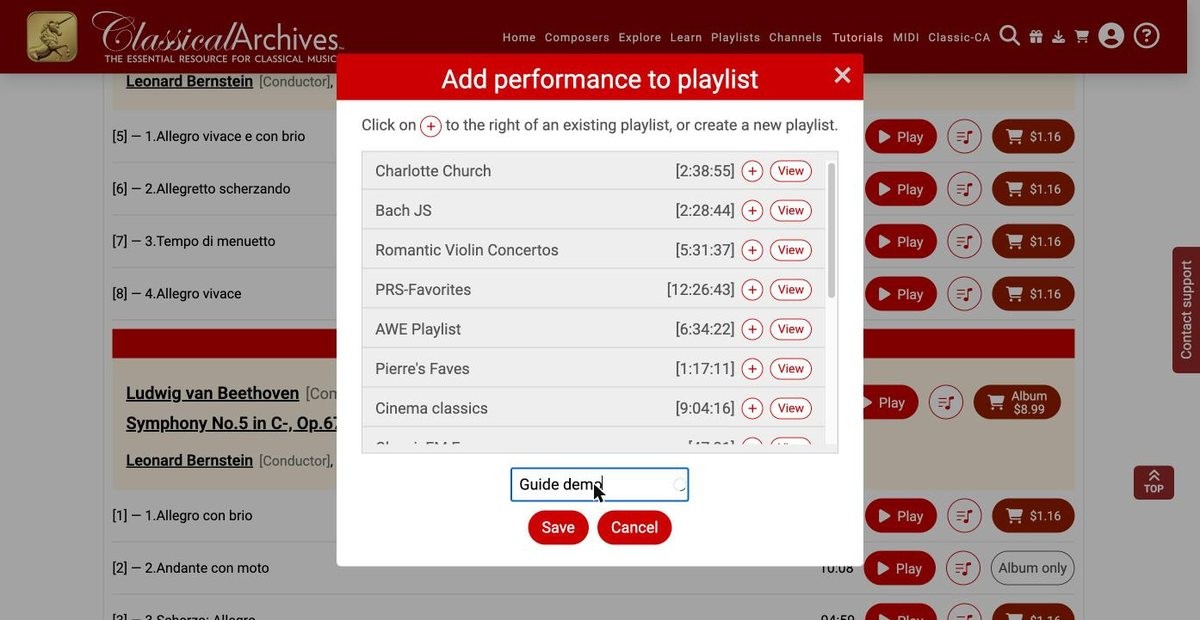
Name the new playlist. - The playlist is created with your music already in it. It appears at the top of the list, and the window confirms Added to playlist. Click Close to carry on browsing, or View to open the playlist.
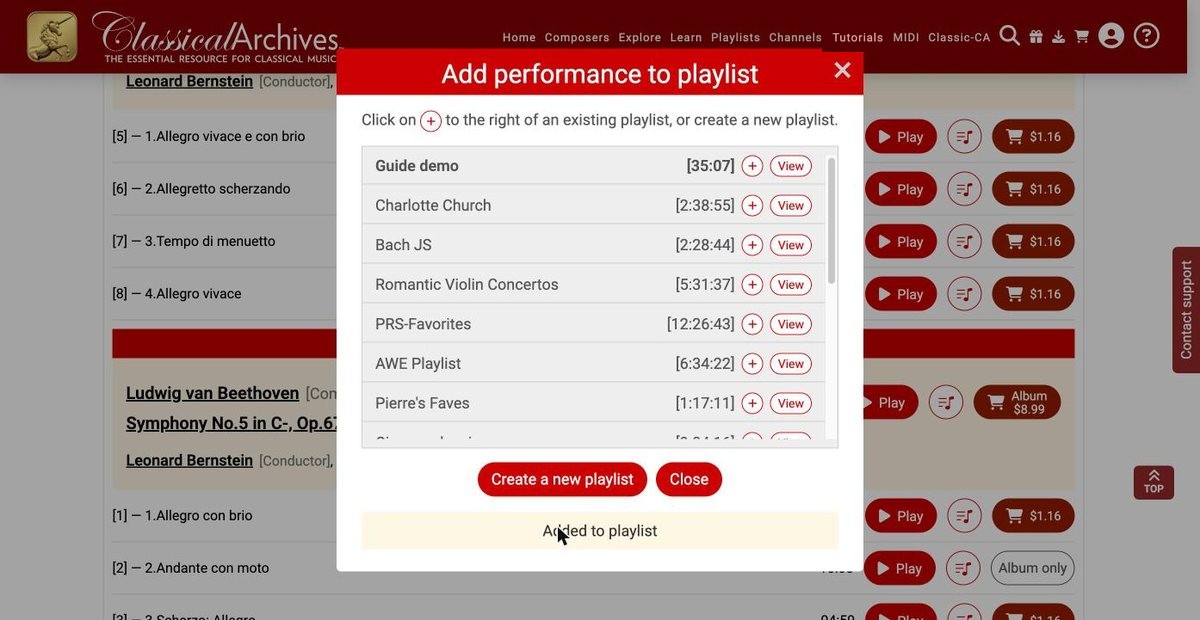
“Guide demo” is created and shows its length, 35:07.
4Add more music
Keep browsing. Whenever you find something else you want, click its playlist button and then the + next to the playlist's name. The total length updates straight away.
5Edit your playlist
Open a playlist with View to see and change it.
Change the order
Drag any item by the dotted handle (⋮⋮) under its number and drop it where you want it. The new order is saved straight away.
Rename it and describe it
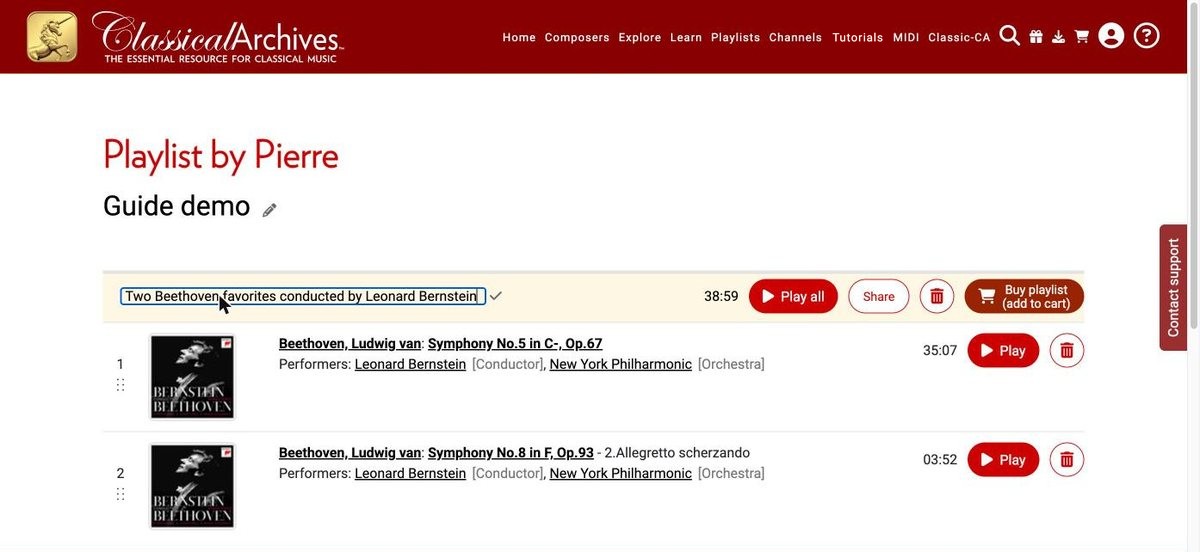
The title and the description are entirely up to you, and you can edit them at any time. Click the pencil next to either one, type, then press Enter or click ✓. A short message confirms the change.
Everything else
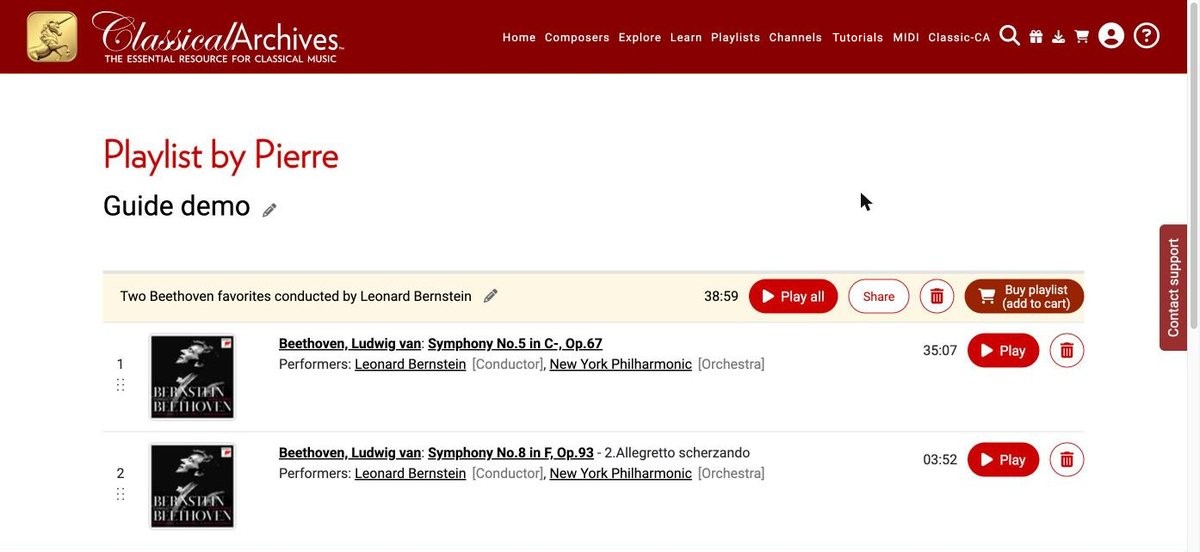
| To… | Do this |
|---|---|
| Rename it | Click the pencil next to the title. |
| Describe it | Click the pencil next to Description…, type, then press Enter or click ✓. |
| Reorder items | Drag an item by the dotted handle (⋮⋮) under its number. |
| Remove an item | Click the trash button on that item's row. |
| Play | ▶ Play all plays the whole playlist; ▶ Play on a row starts from that item. |
| Buy it | Buy playlist (add to cart) puts everything in the playlist into your cart. |
6Share a playlist
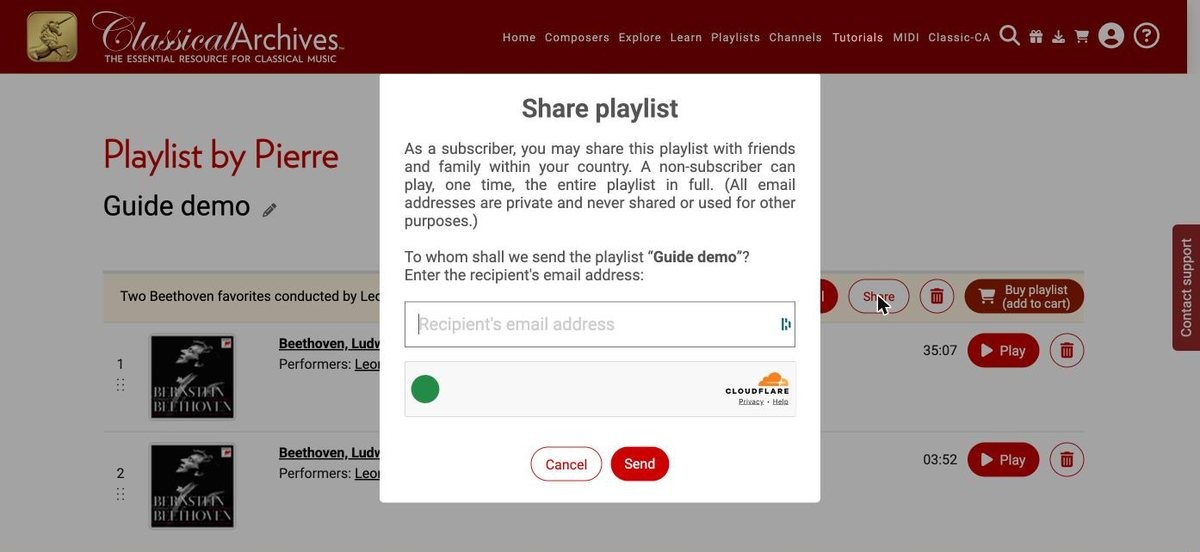
- Click Share on the playlist page, or next to the playlist on My Playlists.
- Enter your friend's email address and click Send. A quick security check runs in the window before sending.
7My Playlists
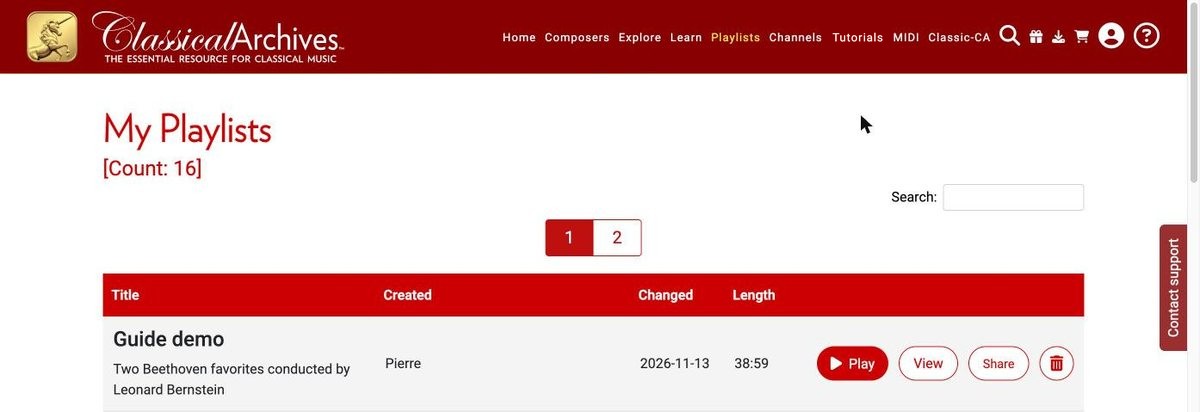
All your playlists are in Playlists → My Playlists, most recently changed first. Each row shows its description, when it was last changed and its length, with ▶ Play, View and Share buttons and a trash button. If you have many playlists, use the Search box or the page numbers.
Delete a playlist
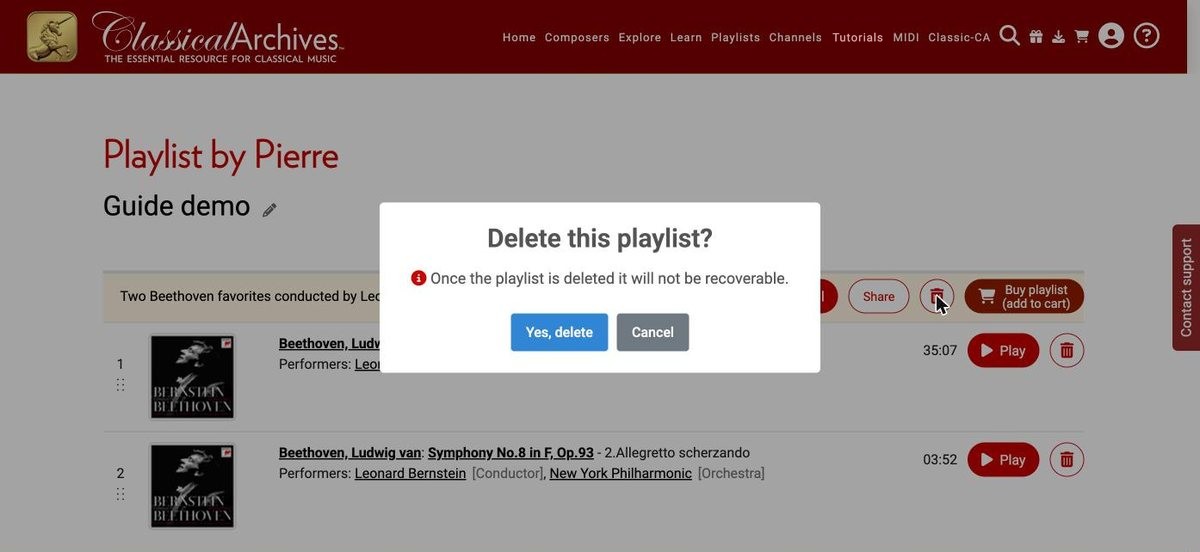
Click the trash button on My Playlists or on the playlist page, then confirm with Yes, delete. A deleted playlist can't be recovered.
8Featured Playlists
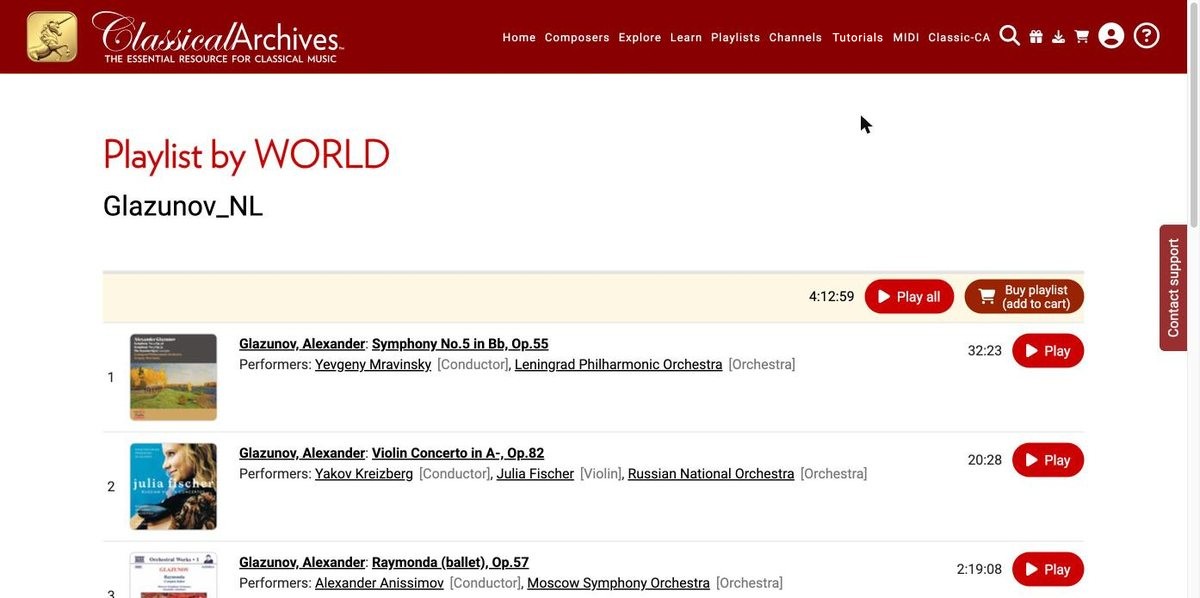
Looking for ideas? Playlists → Featured Playlists has more than 200 ready-made playlists from Classical Archives. Open one with View and click ▶ Play all. As in your own playlists, every name is a link, so you can jump to a composer, work or performer you discover.
New to the site? See Getting Started for a tour of everything else.