1The site at a glance
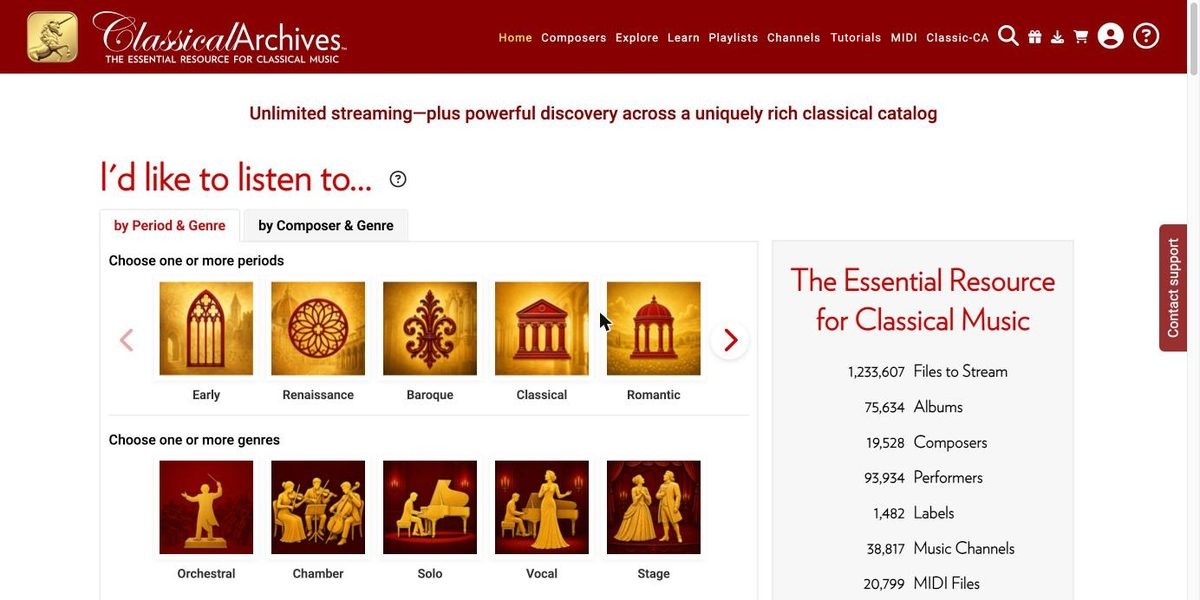
Everything starts from the red navigation bar at the top of each page.
| Menu | What you'll find |
|---|---|
| Home | One-click listening, The Greats, Must-Know works and Featured New Releases. |
| Composers | The Greats, The Notables, All Composers. |
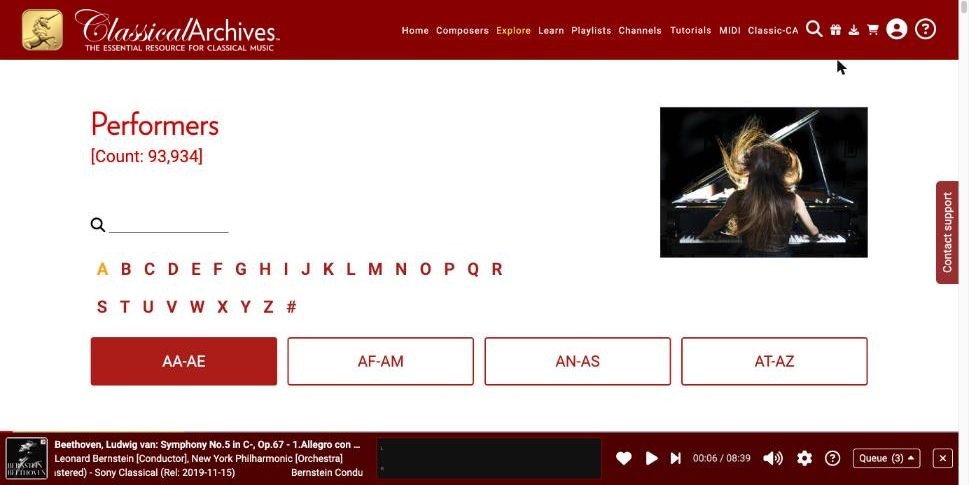
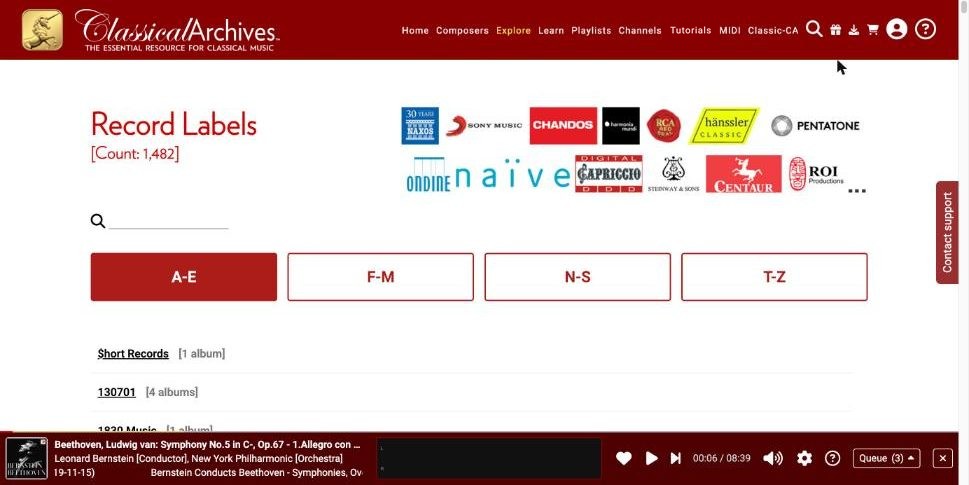
| Explore | New Releases, Performers Index, Albums by Label. |
| Learn | Must-know by Composer, Must-know by Period/Genre, Musical Periods. |
| Playlists | My Playlists, Featured Playlists. |
| Channels | Channels by Period/Genre, My Favorites. |
| Tutorials | These guides, which open in a new tab. |
The icons on the right side of the bar are, from left to right: Search (magnifying glass), Send as a gift, Downloads, Cart, Account (Login / Join) and Help (?).
2Start listening in one click
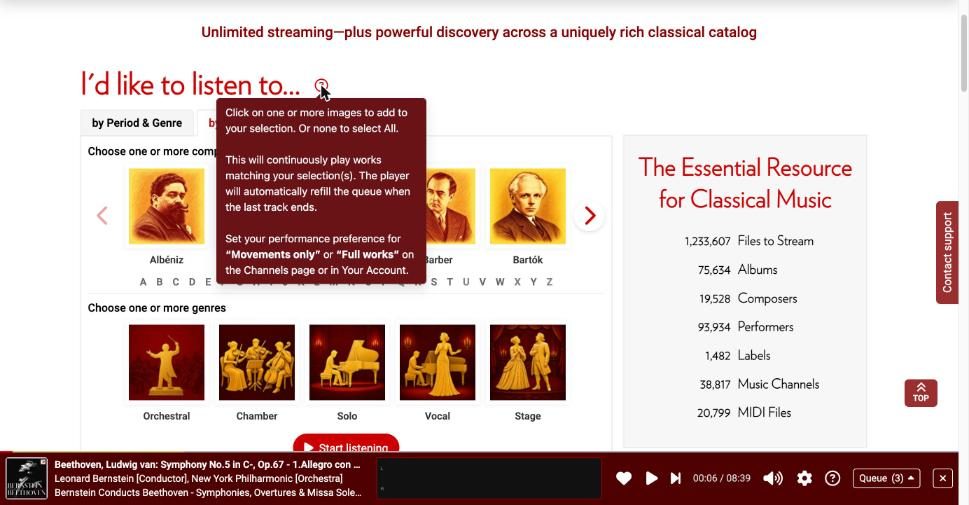
The “I'd like to listen to…” panel on the home page is the fastest way to hear music.
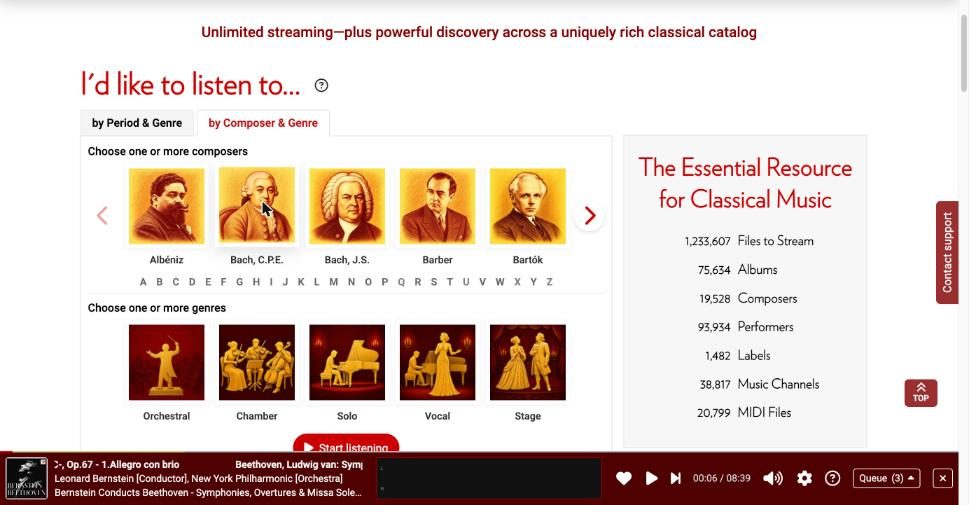
- Choose a tab: by Period & Genre or by Composer & Genre.
- Click one or more images to select them, for example Baroque + Chamber, or Bach, J.S. + Solo. Use the arrows (or the A–Z letters on the composer tab) to see more choices. If you select nothing in a row, everything in that row is included.
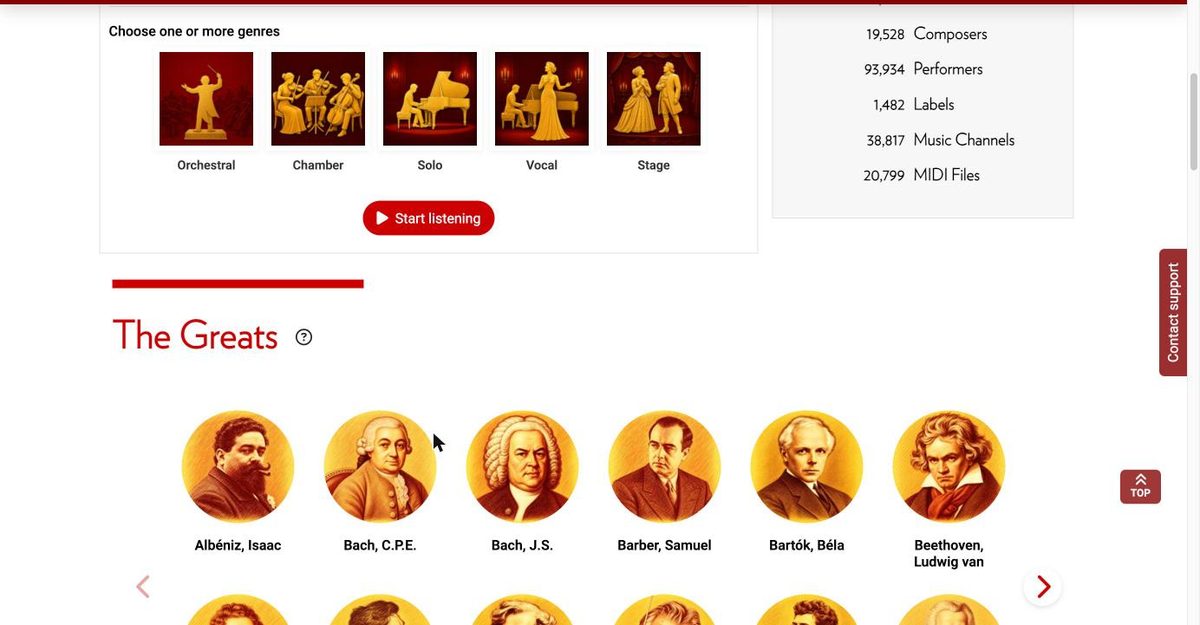
- Click ▶ Start listening. Classical Archives then plays works matching your choices in random order, and the player refills its queue on its own when the last track ends.
3Find a composer
More than 19,000 composers are listed, in three groups. Open them from the Composers menu.
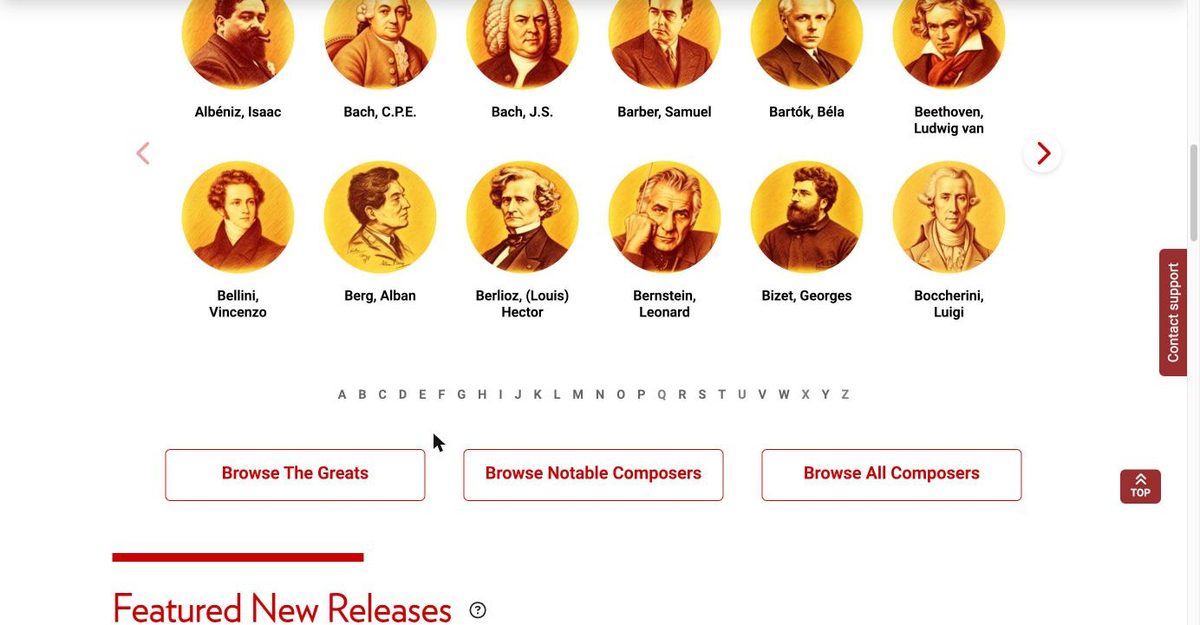
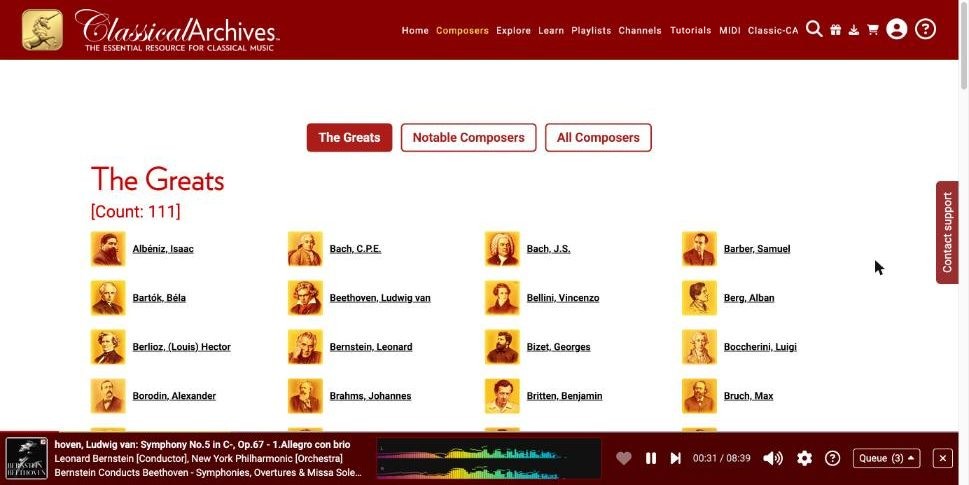
The Greats, The Notables and All Composers
- The Greats: the best-known composers, from Albéniz to Ysaÿe, each with a portrait.
- The Notables: a wider group of important composers.
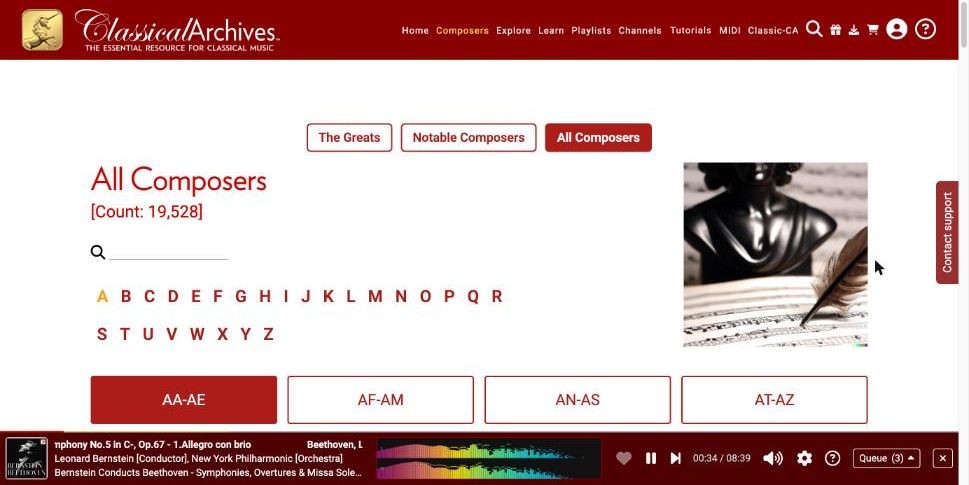
- All Composers: the complete index. Click a letter, then a range button (such as AF–AM), or type a name in the search box. Each name shows how many performances and tracks are available.
4Explore a composer's works
Click a composer's name to open their page. Beethoven is the example here.
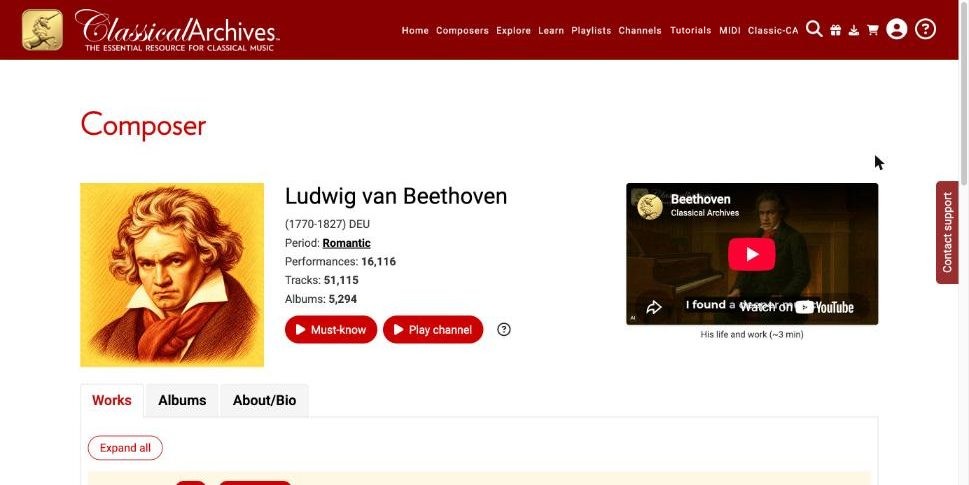
- ▶ Must-know plays the composer's essential works.
- ▶ Play channel plays the composer's music nonstop, in random order.
- Use the Works, Albums and About/Bio tabs to see the catalog, the albums or the biography.
Browse the works list
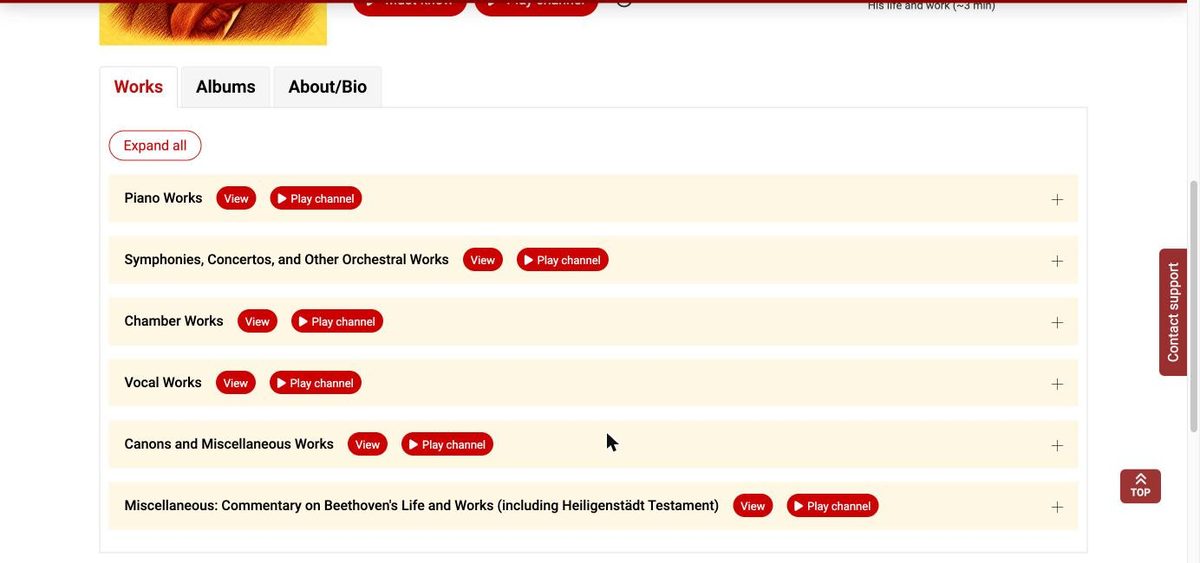
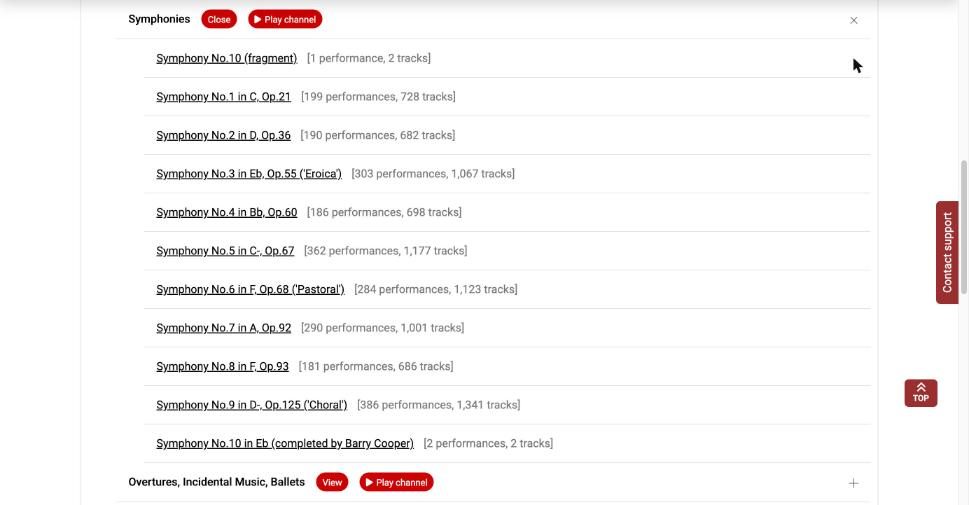
Works are grouped into categories such as Piano Works or Symphonies, Concertos, and Other Orchestral Works. Each category has three controls:
- View opens the category on its own page.
- ▶ Play channel plays music from that category only.
- + on the right expands the category in place. Expand all opens every category at once.
5Pick a work and a recording
Many works have hundreds of recordings. A work page helps you choose one.
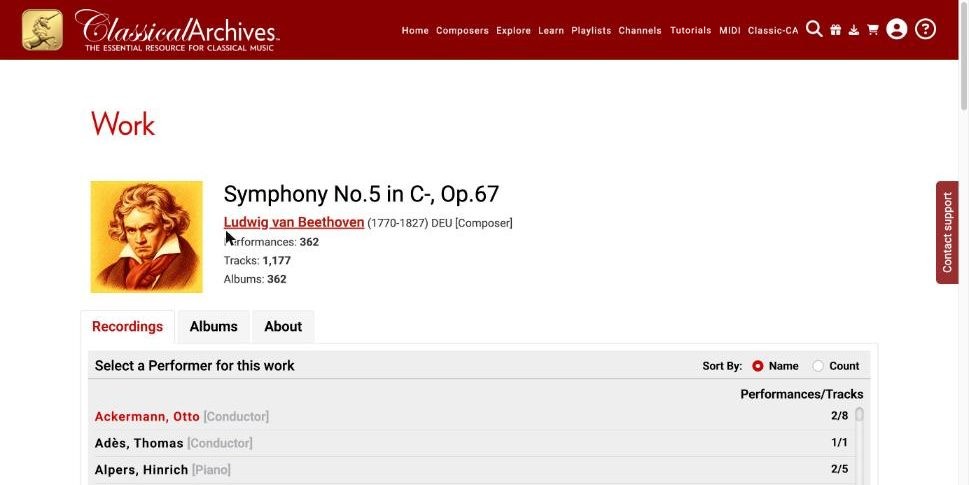
- On the Recordings tab, choose a performer in “Select a Performer for this work”. The list shows each conductor, orchestra or soloist with their number of performances and tracks. Sort it by Name or by Count (most recorded first).
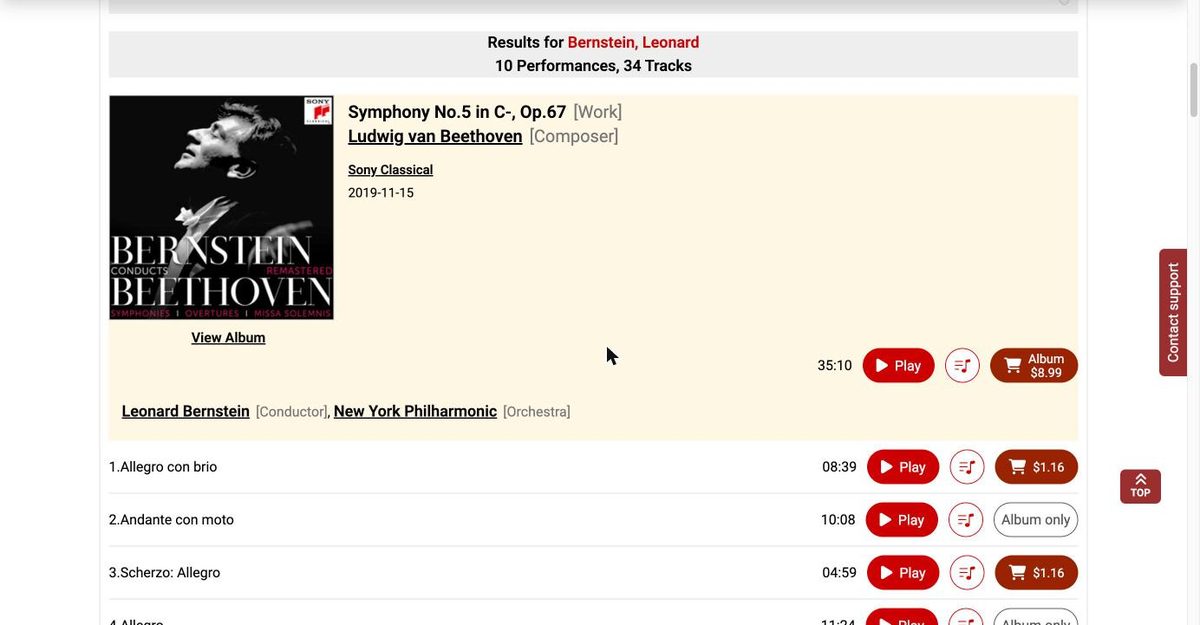
- The performer's recordings of the work appear below, each with its album cover, label and release date. Click View Album to open the whole album.
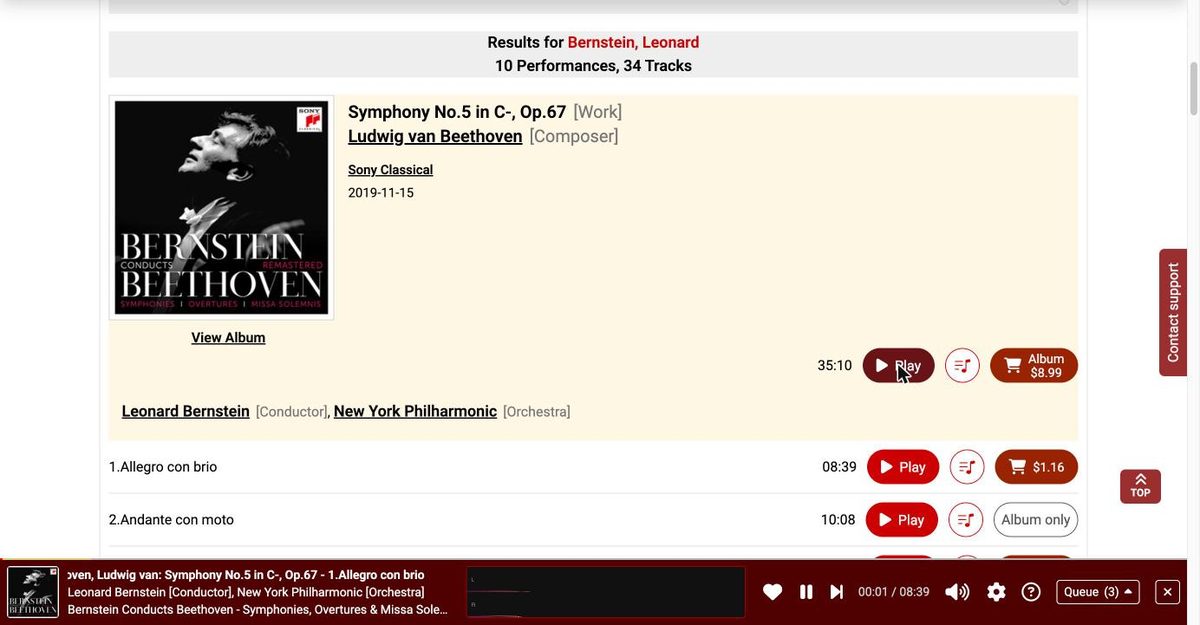
- Click ▶ Play beside the total time to play the whole performance, or a Play button on a single movement to start there.
The Albums tab lists every album that contains the work. The About tab describes the work.
6Everything is connected
Every underlined name on Classical Archives (composer, work, performer, ensemble, album or label) is a link. Start anywhere, then follow any name to keep exploring.
| From a… | …click through to |
|---|---|
| Composer | Each of their works, their albums (Albums tab), and their musical period (e.g. “Period: Romantic” opens the Romantic feature). |
| Work | The composer, every performer and ensemble that recorded it, each album, and each label. |
| Performer / Ensemble | Every composer they recorded, then each work, its composer, the other performers on the recording, the album and the label. |
| Album | Its performers and label at the top, then the composer and work of each piece in the track list. |
| Label | All of its albums. |
| Player | The album cover opens the album that's playing. |
Follow one chain: from Beethoven to John Adams in four clicks
- Start on a work. In section 5 we opened Beethoven's Symphony No.5 and chose Leonard Bernstein's recording. Every name in that recording is a link: the work, the composer, the label, the conductor and the orchestra.
On a recording, the work, composer, label, Leonard Bernstein and New York Philharmonic are all links. - Click the performer. Clicking Leonard Bernstein opens his performer page. Under Select a Composer, choose Beethoven to see all 166 of Bernstein's Beethoven performances, each linked to its work, composer, label and album.
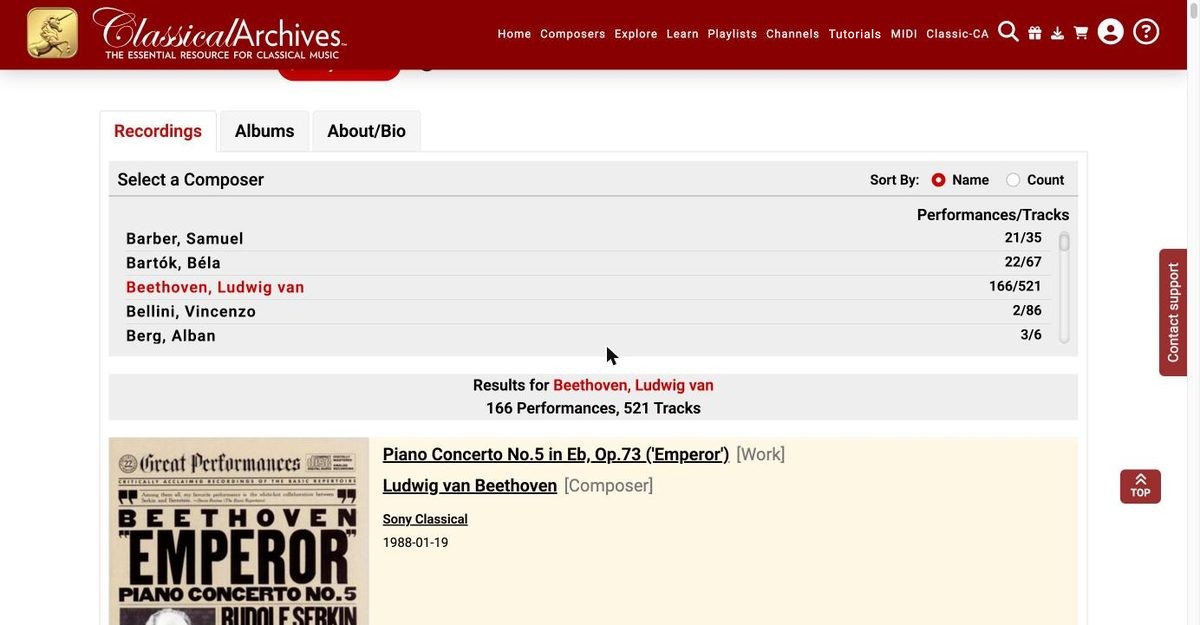
Leonard Bernstein's page, with Beethoven selected. - Open the album. Click View Album or the cover. At the top, the performers and the label are links. In the track list, each piece names its composer and work, also as links.
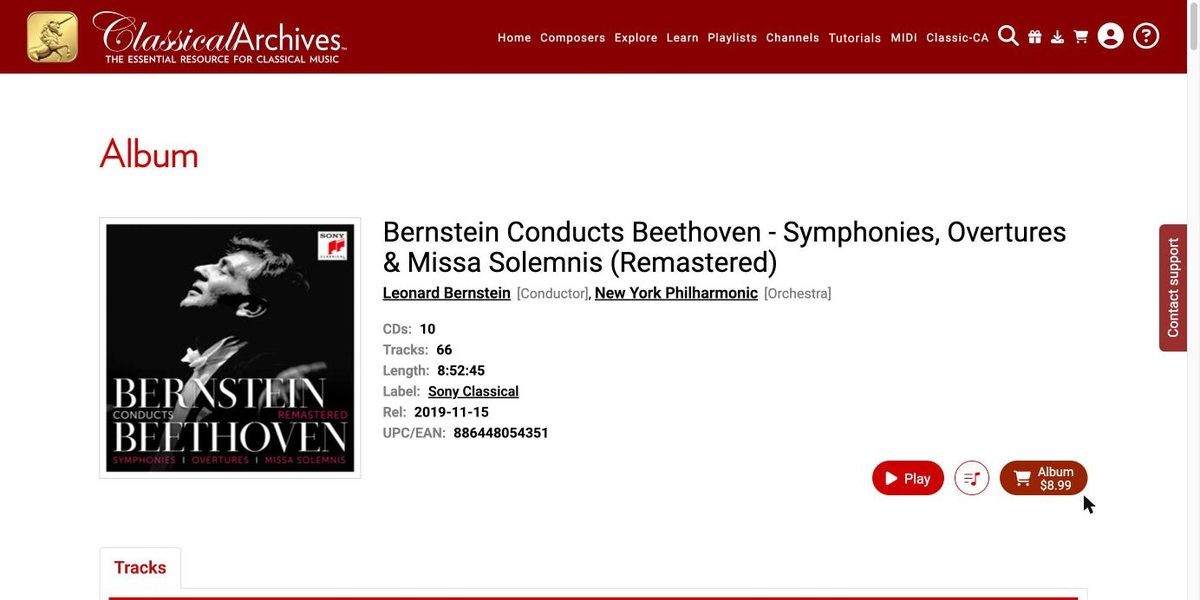
Album header: performers and label are links. 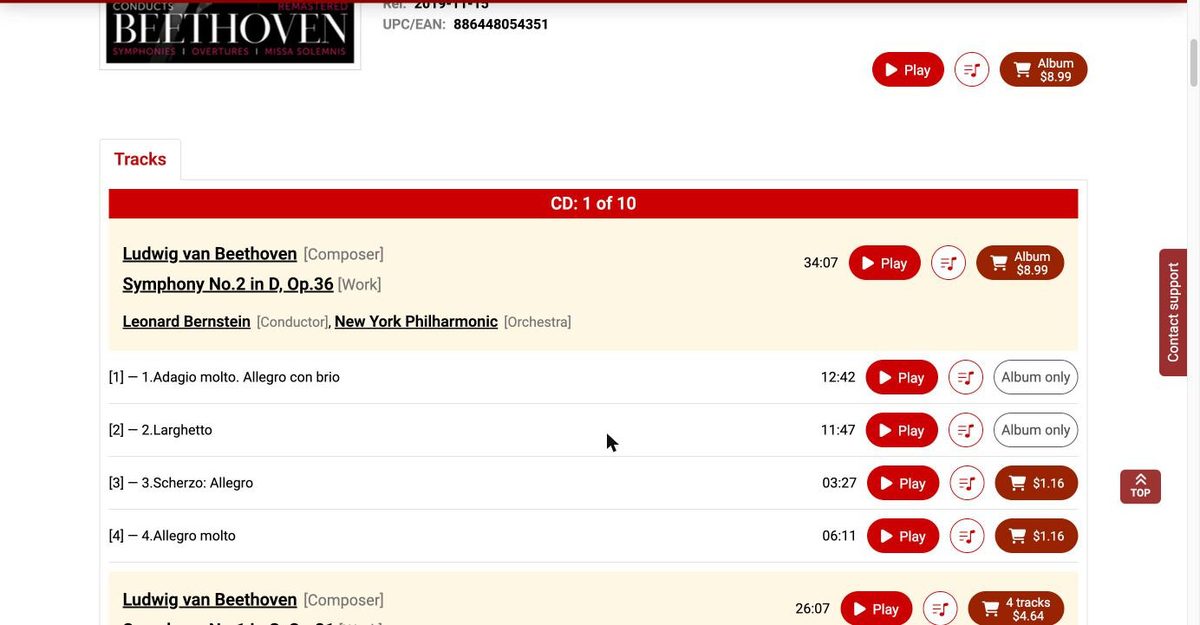
Track list: composer, work and performers for each piece. - Jump to the ensemble. Click New York Philharmonic. Its page lists every composer the orchestra has recorded, from John Adams onward. Pick one, and you've gone from Beethoven to an entirely different composer, with the trail open in every direction.
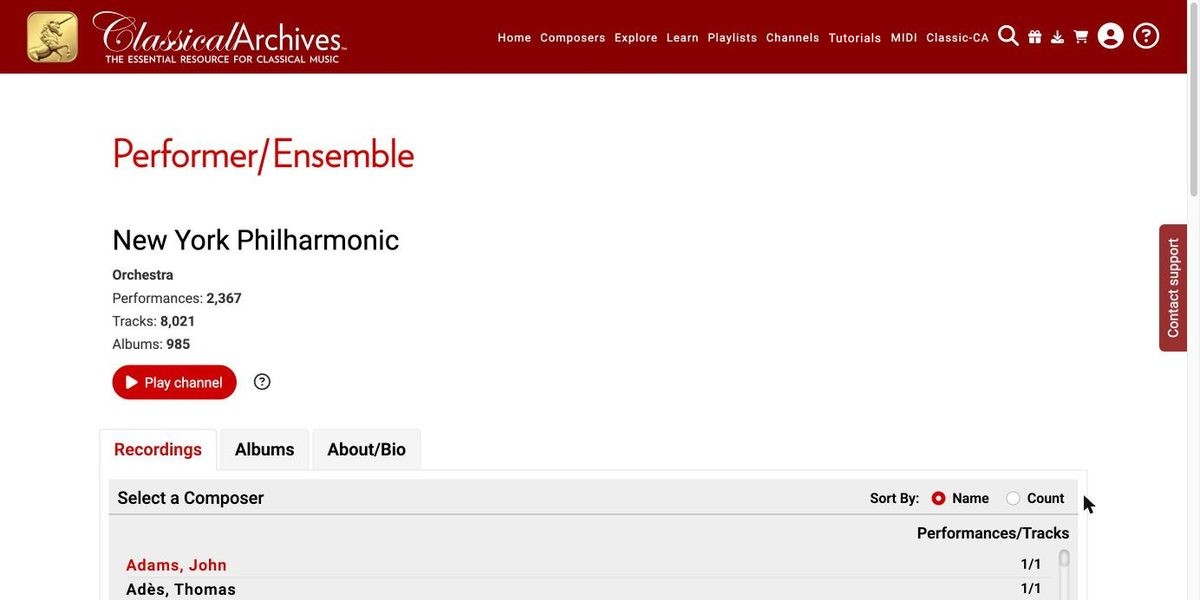
The New York Philharmonic's page starts its composer list with John Adams.
7Use the player
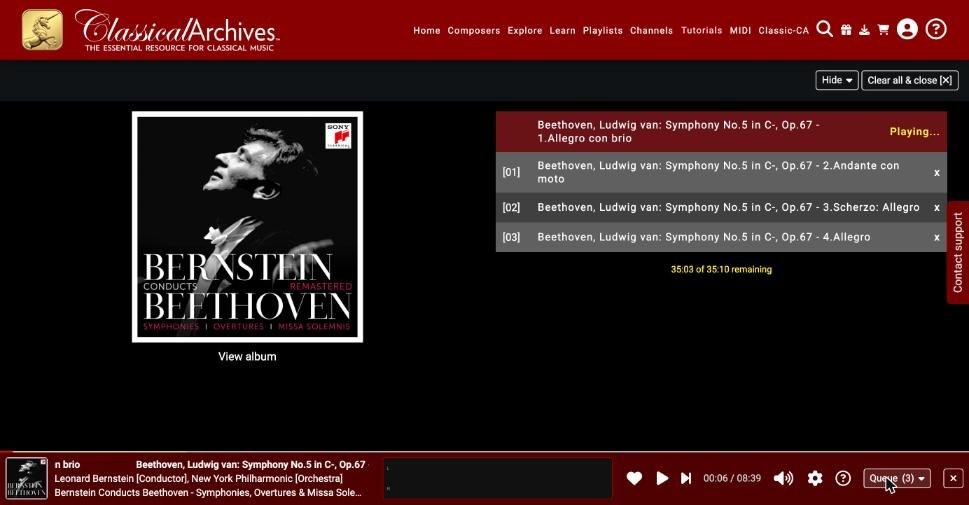
The player bar stays at the bottom of the screen, so you can keep browsing while the music plays.
Click the player's own ? button for this built-in guide to each control:
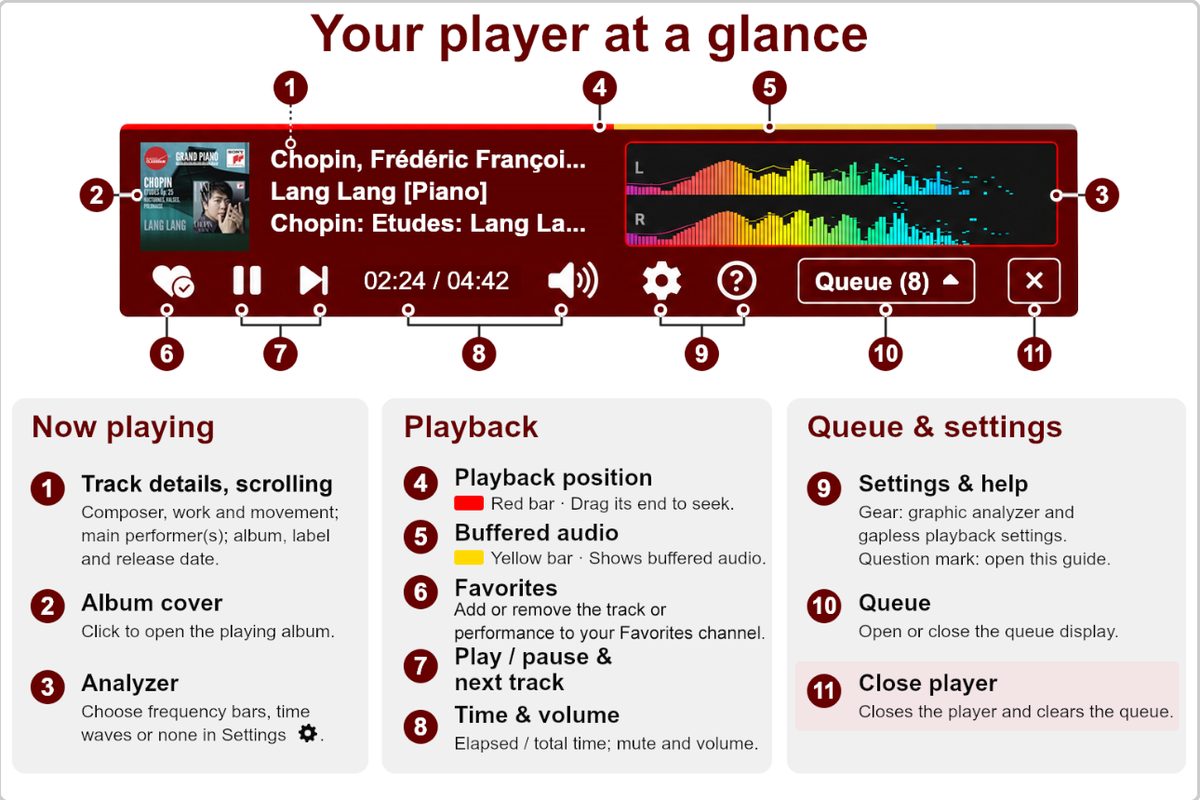
| Control | What it does |
|---|---|
| ♥ Favorites | Adds the track or performance to your Favorites channel, or removes it. |
| Play / Pause, Next | Controls playback. |
| Red and yellow bars | The red bar shows how far the track has played; drag its end to jump. The yellow bar shows how much audio has loaded. |
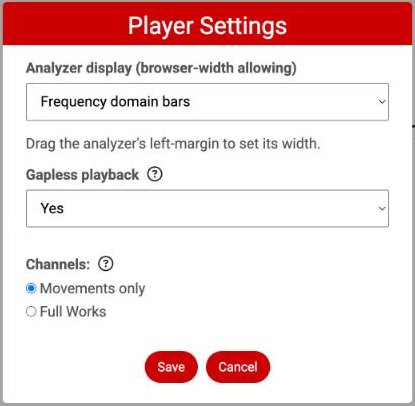
| Gear | Opens Player Settings: the visual analyzer (frequency bars, waves or none), gapless playback, and the Channels choice of Movements only or Full Works. |
| Queue | Shows or hides the list of upcoming tracks. Click x to remove a track. |
| Album cover | Opens the album that is playing. |
| ✕ | Closes the player and clears the queue. |
8Search
Click the magnifying glass in the navigation bar.
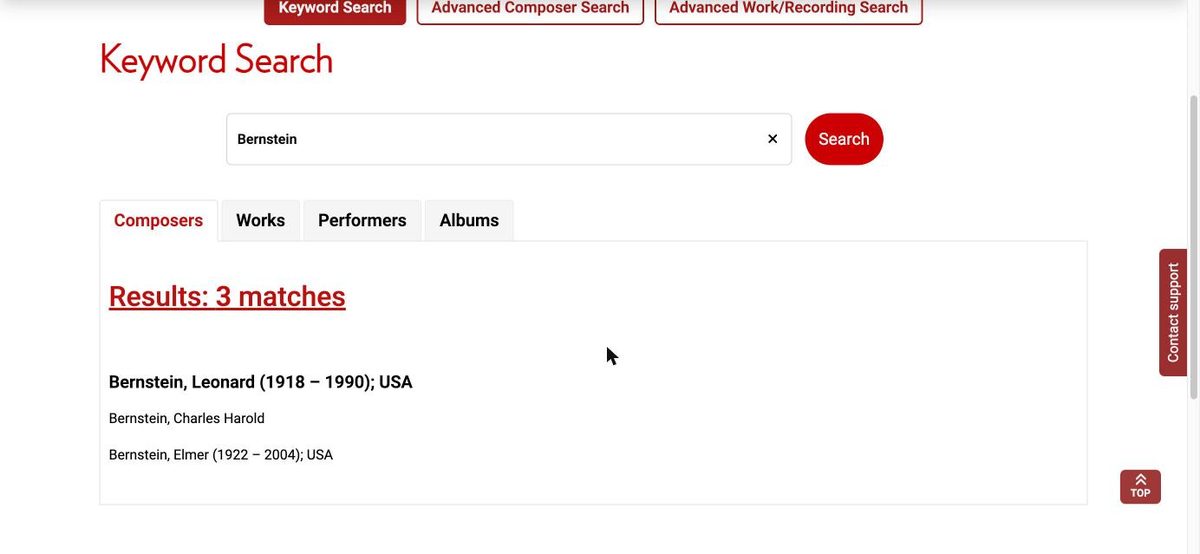
- Keyword Search: type any words, such as a composer, performer, work title or nickname. Results are sorted into tabs (Composers, Works, Performers and Albums), and only the kinds that match appear. Work results are grouped by composer; click + to expand.
- Advanced Composer Search: finds composers by more specific criteria.
- Advanced Work/Recording Search: finds specific works and recordings.
9Explore: releases, performers, labels
New Releases
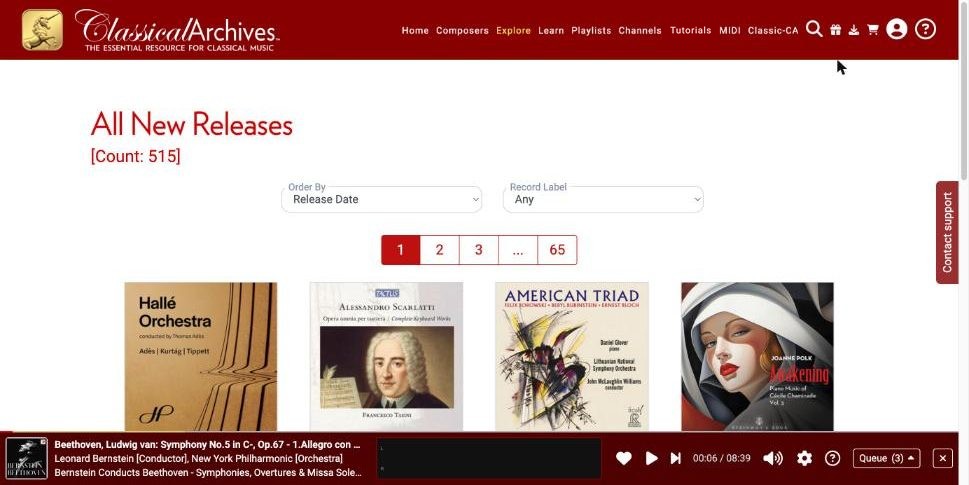
Open Explore → New Releases to see recently added albums. Sort them with Order By (release date, title, price, number of tracks, duration, cost per minute and more), and filter by Record Label. The home page also has a Featured New Releases carousel.
10Learn: Must-Know and periods
Must-Know works
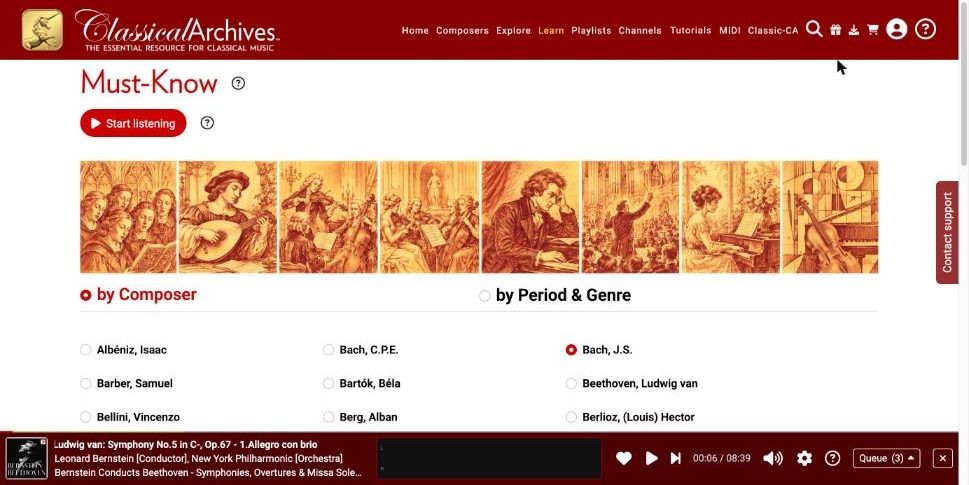
Not sure where to begin? Learn → Must-Know lists the essential works, by Composer or by Period & Genre. Pick a composer to see their must-know list (87 works for J.S. Bach, for example), then click Play all or play a single work. ▶ Start listening plays must-know works continuously.
Musical Periods
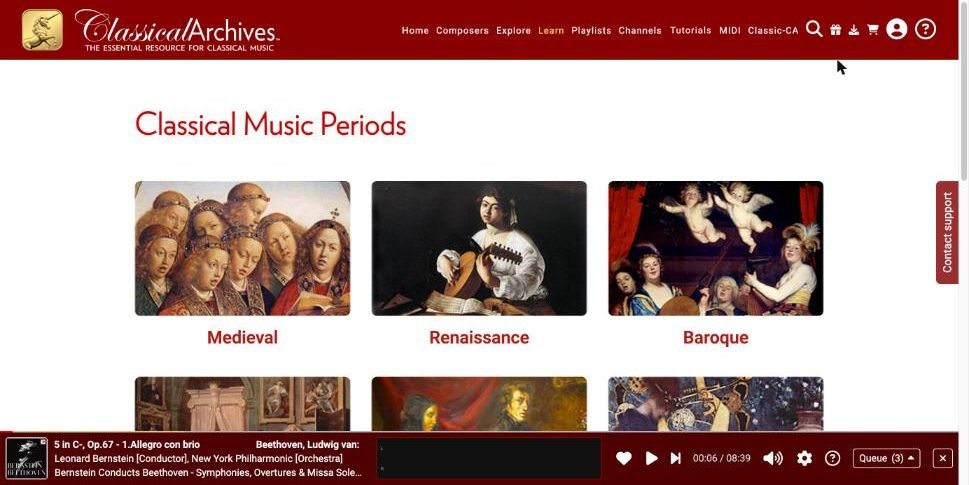
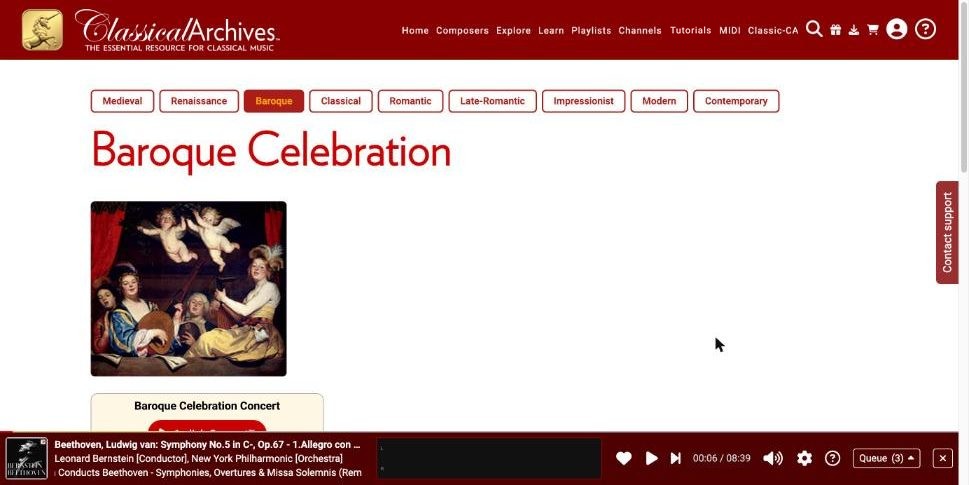
Learn → Musical Periods has an illustrated feature for each era, from Medieval to Contemporary. Each feature has Introduction, Overview, Composers, Works and Performers sections and a 1-click Concert™ that plays a program of music from that era.
11Playlists
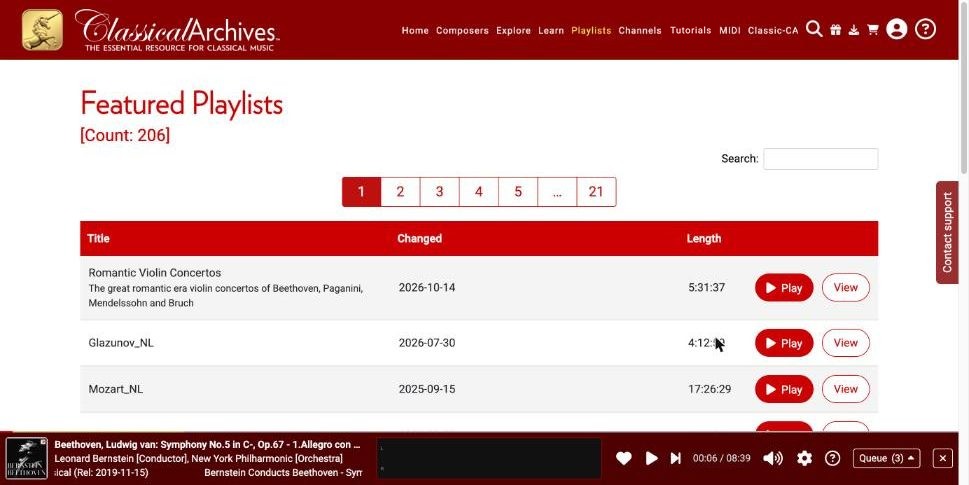
Playlists → Featured Playlists has more than 200 ready-made playlists. Each one shows its length and date. Click ▶ Play to listen right away or View to see the tracks, and use the Search box to find a playlist.
My Playlists holds the playlists you create. To add music to one, use the playlist icon next to any Play button. You can play, view and share your playlists from this page. You need an account to create playlists.
12Music Channels
A channel is a nonstop stream of music, picked at random from what you chose, so it is different every time. Open Channels → Channels by Period/Genre to make your own:
- Choose Movements only or Full works.
- Tick one or more periods (Early/Renaissance through Modern/Contemporary) and one or more genres (Orchestral, Solo/Chamber, Vocal, Stage).
- Click ▶ Play channel.
Movements only, or Full Works?
Channels are available by composer, by performer, from your Favorites, or by the periods and genres you select. They always pick at random, but you choose whether they play entire works or individual movements:
| Channels setting | What the channel plays |
|---|---|
| Movements only | Individual movements, picked at random. |
| Full Works | Entire works, picked at random. Each work plays all its movements in order before the next random pick. |
Set it in My Account → Channels, or with the gear in the player bar (Player Settings → Channels, then Save). The Channels page also has the same choice at the top.
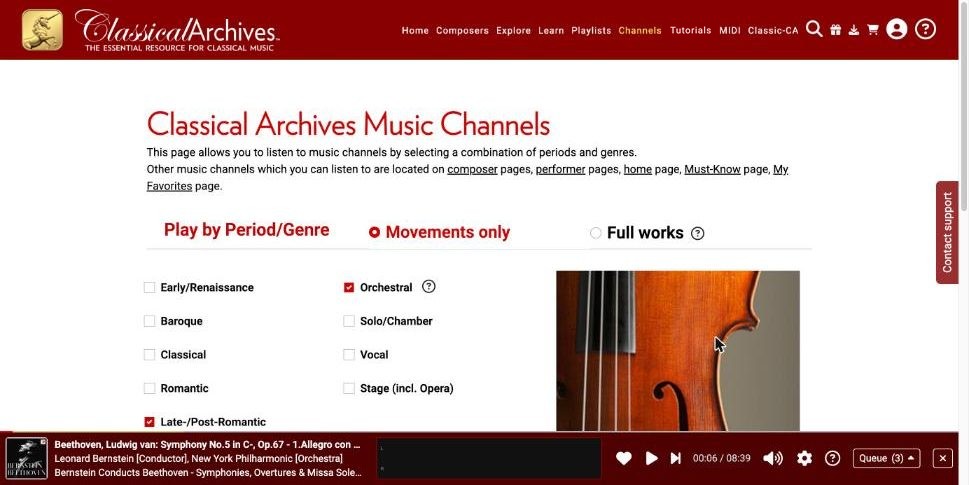
There are other channels throughout the site: on composer and performer pages, on the home page, on the Must-Know page, and in My Favorites, which plays the recordings you have marked with ♥ (see Your Favorites Channel).
13Joining and subscribing
Click the Account icon (the person silhouette) and choose Join to create an account, or Login if you already have one. Subscribers can play everything in full. Subscription benefits include:
- Unlimited streaming of anything, anytime, anywhere, in full
- 10% discount on downloads
- Up to 1,000 custom playlists, which you can share
- All Music Channels: by composer, performer, Must-Know and Favorites
- Your own channel built from your ♥ Favorites
- The mobile apps (iOS, Android, Kindle, Sonos, Alexa)
- Up to 100 free MIDI downloads a day
Subscriptions are $7.99 a month or $79.90 a year. You can also buy individual albums or tracks with the cart buttons and get them from the Downloads icon. The gift icon lets you send a subscription or music download as a gift.
Once you're signed in, the Account menu also has My Account, Listening History and Purchase History.
14Getting help
- The ? icon at the far right of the navigation bar opens the Help menu: Send CA as a Gift!, Tutorials, Player Functions, Alexa Skill (see Classical Archives on Alexa) and Contact support.
- The Classical Archives Blog and Vlog are linked at the bottom of every page, under “Follow us on”.
- The red Contact support tab on the right edge of every page opens the support form.
- The small ? icons next to section titles explain each feature right where you need it.